How to apply an e-Meterai to a PDF online with docs.resmi.id
You have a statement, a receipt or an agreement as a PDF and need to stamp it today. There is no need to print it, stick on a paper stamp and scan it again. With an e-Meterai, the whole process can be done from your laptop in a few minutes.
 Resmi.ID Team · 4 min read ·
 Photo: Kelly Sikkema / Unsplash
This guide explains how to apply a Peruri e-Meterai to a PDF from the docs.resmi.id dashboard, from preparing the file to checking the result. In the dashboard, the e-Meterai is applied as part of a signing document: Rp5,000 per signer plus Rp10,000 per e-Meterai, paid from your Resmi.ID business balance. If your system only needs the stamp without signatures, use the e-Meterai API.
Before you start: make sure the PDF is final
This is the most important rule. A Peruri e-Meterai works as a digital signature on the file. If the PDF is changed after stamping, for example by adding pages, inserting a signature image or re-saving it in another app, the stamp will show as invalid when checked.
- Double-check the content, the parties' names, amounts and dates.
- Make sure all signatures are already on the document, or use the docs.resmi.id signing flow so the stamp is applied automatically once all parties have finished.
- Remove any password or lock from the PDF, because encrypted files cannot be stamped.
- Leave some empty space near the signatures for the stamp.
Steps to apply an e-Meterai
- 1Sign in and choose a businessSign in to docs.resmi.id with your Resmi.ID account and choose the business whose balance will be used.
- 2Create a documentCreate a new document and upload the final PDF you want to stamp.
- 3Add signersEnter the parties who will sign; if only you sign, add yourself.
- 4Turn on e-MeteraiChoose the document type, enter the document number if any, then set the page and corner for the stamp.
- 5Send the documentYour balance is checked for both signature and e-Meterai fees, then invitations go out to the signers.
- 6Sign and downloadAfter everyone signs, the e-Meterai is applied automatically as the last step; download the final PDF and keep it as your record.
Choosing the right document type
The document type is recorded with the stamp and follows the categories accepted by Peruri's system. The options available on docs.resmi.id are:
- 1Dokumen Transaksi (transaction document)A document recording a transaction, for example a securities transaction.
- 2Surat Berharga (securities)For example cheques, bilyet giro, bonds or promissory notes.
- 3Surat Keterangan (certificate letter)A letter describing a situation, such as a confirmation of cooperation.
- 4Surat Pernyataan (statement letter)A one-sided declaration, such as a statement of commitment or of no objection.
- 5Surat Lainnya (other letters)Similar civil documents that do not fit any other category.
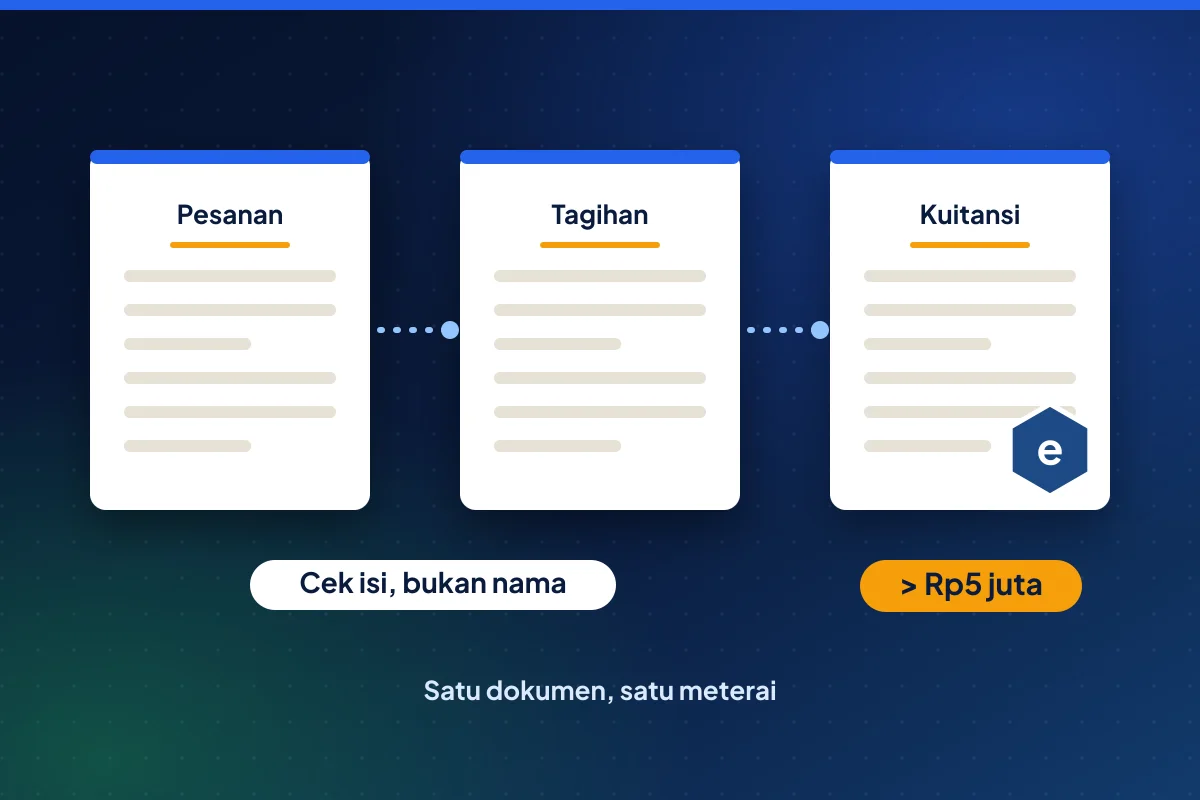
- 6Receipt of money (above 5 million)A receipt or proof of payment received above Rp5,000,000.
- 7Debt settlement (above 5 million)A document stating that a debt above Rp5,000,000 has been paid off.
These categories follow the objects of stamp duty in Article 3 of Law 10/2020. The Rp5,000,000 threshold applies to documents that mention receipt of money or acknowledge settlement of a debt. If you are unsure which to choose, ask your tax consultant, because the recorded type is shown when the stamp is checked.
Choosing the stamp's position
By convention, the stamp goes near the signature of the party liable for the duty, for example next to the payee's signature on a receipt. On an agreement, it usually goes on the signature page. Make sure the stamp does not cover figures, names or signatures, so the document stays clearly readable.
Frequently asked questions
- What if my balance is too low? Top up your business balance through the Resmi.ID dashboard first. Make sure there is enough for every stamp before you start.
- Can one stamp be used for several PDFs? No. Every document subject to stamp duty needs its own stamp.
- Can I sign after the stamp has been applied? Better not, because any change to the PDF invalidates the stamp. Finish all signatures first.
If the document also needs signatures
For an agreement signed by several parties, you do not need to stamp it separately. When you prepare a signing document on docs.resmi.id, turn on e-Meterai and choose the document type. The system applies the e-Meterai as the last step, after every signer has finished, so the stamp is not broken by signatures added later.
Checking the result
Open the downloaded PDF in Adobe Acrobat Reader and look at the signature panel. A valid stamp shows a valid digital signature and a document that has not changed since stamping. The e-Meterai serial number is also recorded in your document's audit trail.
- Keep the stamped PDF as it is. Do not open and re-save it in an editing app.
- Send the original file to the other party, not a screenshot or a scanned printout.
- If the stamp shows as invalid, check whether the file was changed after you downloaded it.
With this flow, a process that used to take half a day, from buying stamps to rescanning, is done in a few minutes, and the result can be verified by anyone.
References
This information is general and not legal advice. For important decisions, check the latest regulations at official sources or consult a legal professional.